Announcements
Announcements are company-wide (or department-wide) broadcasts you post from the admin panel - the vimigo equivalent of pinning a notice on the office noticeboard, but delivered to everyone's phone.
What is it?
Announcements let a boss, HR or manager push a single message out to the whole company or a chosen department. The message appears in the employee's app announcement area and (typically) pushes a notification to their phone. It's a one-to-many broadcast, not a conversation - employees read it, they don't reply inside the announcement itself.
Typical uses at a Malaysian SME:
- "Office closed on Thursday due to flooding - work from home."
- "Company dinner this Saturday 7pm at Restoran Seri Melayu, all welcome."
- "New HR policy: effective 1 May, claim submissions must be in by the 5th."
- "Congratulations to Ahmad (Sales) for top salesperson of Q1!"
Announcements aren't a replacement for leave approvals, goals, or rewards. Use them for news - things everyone should know but no one needs to take action on individually.
Verify: On some tenants Announcement may live under "All Features" > "Action" > "Announcement"; on others it may be in the main left sidebar. Confirm the exact path on your company's dashboard.
Quick Start
If you're a management user sending your first announcement:
- In the web admin panel, click "All Features" at the top and under the "Action" group click "Announcement".
- On the Announcement page, click "Add Announcement".
- Fill in the title, message, and any attachments. Pick who should receive it (whole company or specific departments / users).
- Click "Submit".
- Staff see the message in their app immediately and (for most tenants) also get a phone push notification.
After this you'll have posted your first broadcast. Employees will find it in the announcement area of their mobile app.
For Admins (Employer / HR / Manager)
How to add an announcement
- Navigate to "All Features" > "Action" > "Announcement".
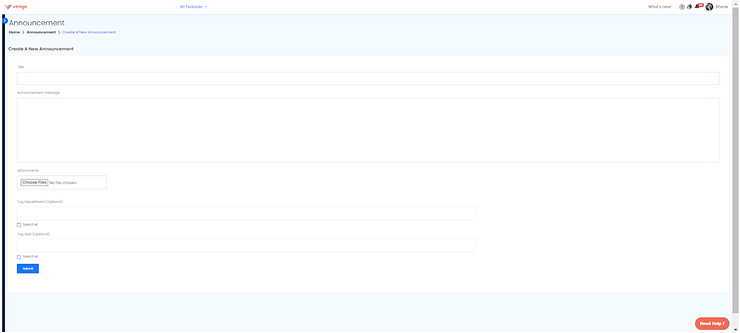
- On the Announcement list, click "Add Announcement" at the top right. A "Create A New Announcement" form opens.
- Fill in the fields:
- "Title" - the headline. Keep it short so it reads well on a phone notification (under 50 characters).
- "Message" - the body text. Full details go here.
- "Attachments" - optional files (PDF flyer, image, policy document). Multiple attachments are usually supported.
- "Tag Department" / "Tag User" - choose whether everyone sees it, or only specific departments (e.g. Sales only), or specific people (e.g. the management team).
- Review - for big-announcement cases (company closure, policy change), double-check the title and message before submitting. Once it's sent, you can't un-push from employees' phones.
- Click "Submit" to publish.
Tip: If you want to send an announcement to the whole company, leave the department and user tags empty (or pick "All"). If you target specific departments, only staff in those departments see it.
How to target a specific department only
Use this when the message is genuinely relevant to one group and you don't want to spam everyone else.
- Start the announcement as above.
- In the "Tag Department" field, pick the department(s) - for example "Sales" only.
- Leave "Tag User" empty (or use it to add one or two extra individuals outside that department).
- Submit.
Only staff in the tagged departments will see the announcement in their app and receive the push notification. This is the cleanest way to avoid announcement fatigue.
How to attach a file
- In the "Create A New Announcement" form, look for the "Attachments" field.
- Click to choose a file from your computer (PDF, image, document). Large files may upload slowly - wait for the progress indicator to finish before submitting.
- Repeat to add multiple files if needed.
- Submit as normal. Employees can tap the attachment in the app to open or download it.
Warning: Confidential documents should not be posted by announcement. Anyone in the tagged group will be able to download the file. For sensitive items (contracts, pay slips), use a direct employee channel.
How to edit or delete an announcement
Once an announcement is posted:
- Go back to the Announcement list at "All Features" > "Action" > "Announcement".
- Find your announcement in the list.
- Use the action column to "Edit" or "Delete".
Warning: Editing an announcement updates the text stored in vimigo but does not usually un-send the original phone push notification - employees still saw the first version. For important corrections, post a follow-up announcement rather than hoping everyone notices the edit.
Verify: Confirm whether your tenant shows "Edit" and "Delete" actions on each row. Some deployments only allow edit by the original creator, or require management-user-level access.
How to schedule an announcement for a future date
Verify: The legacy documentation does not describe an in-app scheduler for announcements. Check your current admin panel - if you see a "Publish Date" or "Schedule" field in the Create form, use that. If not, you'll need to post the announcement manually on the day you want it to go live.
Good announcement hygiene
- One topic per announcement. Don't mix the office-closed-Thursday notice with the company-dinner notice. Split into two.
- Keep it short. Most people skim. 2-3 sentences in the body beats a paragraph essay.
- Use attachments for long content. If the message runs to a page, attach a PDF and put a one-line summary in the body.
- Avoid frequency creep. More than 2-3 announcements a week and staff stop reading. Save the channel for things that matter.
For Employees
How to view announcements
- Open the vimigo app on your phone.
- Go to the announcement area. Depending on your app version this is either:
- Tapped from the "Alert" or "Inbox" tab in the bottom navigation, or
- Shown on the home page under a "News" / "Announcement" banner.
- Tap any announcement to open the full message and any attachments.
Verify: Confirm the exact navigation path in the current app. On older versions the announcement feed appears as part of the bell inbox; on newer versions it has a dedicated section.
How to open an attached file
- Open the announcement.
- Tap the attachment (PDF, image, or document) to view it inside the app.
- To save it to your phone, use the download / share icon from the preview.
What you can and cannot do with announcements
- You can read announcements and open attachments.
- You cannot reply inside the announcement - it's a broadcast, not a chat.
- If you need to respond (e.g. RSVP to a company dinner), follow whatever instruction the announcement gives - usually a WhatsApp number or a form link.
Settings & Configuration
| Setting | What it does | Default | Where |
|---|---|---|---|
| "Title" | Headline shown in push and list | - | Create A New Announcement form |
| "Message" | Body text shown when opened | - | Create A New Announcement form |
| "Attachments" | Files respondents can download | None | Create A New Announcement form |
| "Tag Department" | Limits audience to chosen departments | All (if blank) | Create A New Announcement form |
| "Tag User" | Adds specific extra recipients | None | Create A New Announcement form |
| Access to "Add Announcement" | Who can create announcements | Admin / HR / manager roles | Admin panel > Access Rights |
| Push delivery | Sends the announcement as a phone push | On | Notifications system - see Notifications |
FAQ
Q: Does posting an announcement automatically send a phone push?
A: Yes, in most configurations. The announcement goes into the app's announcement area and triggers an "Announcement" push notification to the employees in the tagged group. If you want to change that behaviour, see the notification configuration documented in the Notifications guide.
Q: Can employees reply to an announcement?
A: Not inside the announcement itself. Announcements are one-way broadcasts. If you want two-way input, ask employees to reply via another channel (WhatsApp, email, a vimiForm / vimiReview survey).
Q: I deleted an announcement. Will it vanish from employees' phones?
A: The announcement will be removed from the app's announcement area, so new opens won't show it. The original phone push notification that was already delivered won't disappear - employees can still see the old push in their phone notification centre until they dismiss it.
Q: Can I see who has read the announcement?
A: Read receipts aren't typically shown for announcements (unlike individual notifications). If you need confirmed acknowledgement for a policy change, combine the announcement with a separate signed acknowledgement - for example, email HR, or use a vimiReview / vimiForm acknowledgement survey.
Q: Can I pin an announcement so it stays at the top?
A: Announcements are usually ordered by date. There's no in-app pin feature in the legacy documentation. For messages you want staff to see all the time (vision, mission, values), use the vimigo Vision & Mission block on the home page instead.
Q: How long does an announcement stay visible?
A: Announcements remain in the list indefinitely until you delete them. Employees can scroll back and re-read old announcements any time.
Q: Can I attach a video?
A: File-type support may vary. Images and PDFs always work. For video, you might get better results by uploading the video to vimiKnowledge and including the vimiKnowledge link in the announcement body.
Q: The announcement doesn't show up on some staff phones.
A: Three common reasons: (1) they've disabled the "Announcement" notification type in their personal settings - have them check "Profile" > "Notification Settings"; (2) they're not in the tagged department; (3) they've never logged into the mobile app so no device token is registered. See the diagnosis steps in the Notifications guide.
Related Guides
- Notifications - announcements fire through the notifications system; that guide covers delivery settings and troubleshooting.
- Mobile Basics - how employees find the announcement area in the app.
- vimiKnowledge - for longer internal documents (policies, handbooks) that shouldn't live in a one-off announcement.