Departments
The organizational units that group your people for goal tracking, leaderboards, holiday calendars, and work schedules.
What is it?
A department in vimigo is a bucket that groups employees together. Every vimigo feature that tracks performance, attendance, or eligibility leans on departments to do its job:
- vimiGoal scopes goals to specific departments.
- vimiSales turns commission tracking on or off per department.
- Leaderboards rank people by their department.
- Holidays and Working Days can be overridden per department (e.g. your Johor team gets different holidays from your KL team).
- vimiCheckin's GPS geofencing is set per department so each office has its own clock-in zone.
vimigo uses a flat structure - no parent/child trees. Each employee belongs to exactly one department at a time. If your org has a complex hierarchy, just create departments for the units you want to track performance for.
Quick Start
- Go to Company > "Departments".
- Click "Add Department".
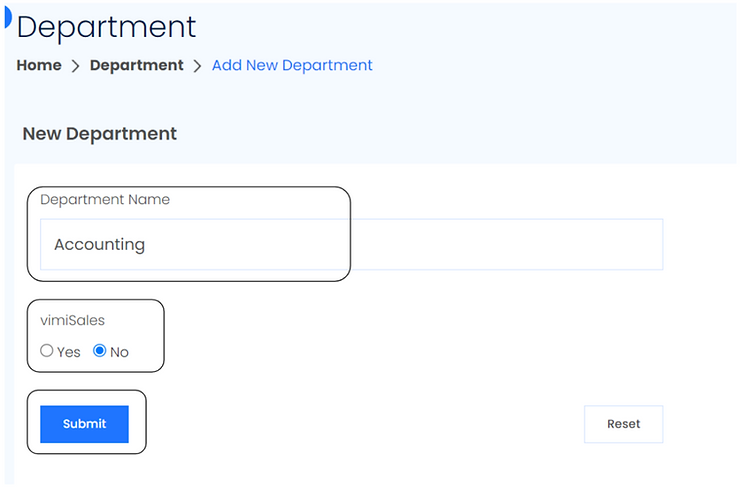
- Enter a "Department Name" (e.g. "Sales", "Operations", "HR"). Pick "vimiSales" Yes/No. Click "Submit".
- Repeat for every department you need.
- From each department's "View People" page, click "Add People" and tick the employees who belong there.
After this, your people are organized and the rest of vimigo can report on them by department.
For Admins (Employer / HR / Manager)
How to create a department
- Open Company > "Departments" in the side menu.
- Click "Add Department" (blue button, top right).
- Fill in the "New Department" form:
- "Department Name" - short, unique name. Examples: "Sales North", "Finance", "Operations KL".
- "vimiSales" - pick "Yes" if people in this department earn commission; "No" if not. You can change this later.
- "GPS Location" - optional,
latitude,longitudeformat (e.g.3.1390,101.6869). Set this if you want vimiCheckin geofencing for this department's office.
- Click "Submit".
- You'll see a confirmation and land on the department list.
Tip: Create all your departments first, then assign people. It's faster than going back and forth.
How to assign people to a department
- Company > "Departments".
- On the department row, click "View People".
- Click "Add People".
- The "Assign People" screen shows a checkbox grid of all unassigned active employees. Use the "Search by Name" field to filter.
- Tick the boxes for the employees you want to assign. Click "Submit".
- You'll see "New user(s) have been included in this department" and land back on the people list.
Employees who are already in another department don't appear on this screen - to move them, see the next section.
How to reassign people to a different department
If someone moves to a new team (e.g. Ahmad transfers from Sales to Operations):
- Company > "Departments" > open the target department (Operations in this case) > "View People" > "Add People".
- Search for the employee. If they don't appear, they're already assigned elsewhere.
- For single users, you can use the Users edit page - open the person and change their "Department" there.
- For bulk reassignments, ask your developer to run the API call (
POST /company/departments/assignwith the list of user IDs and the new department ID) - it handles the reassignment and clears the relevant caches.
Note: Historical goal and sales records keep the old department label. That's intentional - reports from before the reassignment still show Ahmad under Sales for that period. New records and leaderboard rankings will reflect the new department.
How to turn vimiSales on or off for a department
vimiSales (commission tracking) is controlled per department. If an entire team shouldn't be tracked for commission - e.g. your HR team - set vimiSales to "No" on that department.
- Company > "Departments".
- Either use the inline vimiSales toggle on the list, or click "Edit" on the department.
- Switch to "Yes" or "No" and save.
- The system prompts: "You are trying to overwrite [dept name]'s vimiSales settings. This changes will overwrite every employees's settings under [dept name], excluding people with individual manual override settings." Confirm.
Individual employees with a manual vimiSales override keep their personal setting - only people following the department default are affected.
How to set department-specific holidays or working hours
You can override the company-wide Holidays or Working Days for a specific department - useful when you have offices in different states or shifts that differ by team.
For Holidays:
- Set up the holiday list you want (see Holidays).
- Company > "Holiday Settings" > right panel "Department Holiday Override".
- Find the department, uncheck "Use Company Default", pick the right holiday list, click "Update".
For Working Days:
- Set up the working time schedule (see Working Days).
- Company > "Working Time" > right panel "Department Working Times Override".
- Find the department, uncheck "Use Company Default", pick the right schedule, click "Update".
Background jobs push the change to every employee in that department.
How to merge two departments
vimigo doesn't have a one-click merge. To effectively fold Department A into Department B:
- Open A's "View People", note the employees there.
- Reassign each person to B (see "How to reassign people").
- Confirm A now has zero people.
- Open A > "Edit" > "Delete" at the bottom.
Historical data still shows the old department label for records made while people were in A - that's by design.
How to archive a department you no longer use
vimigo has no native archive. Best approach:
- Move all employees out of the department to wherever they now belong.
- Leave the department empty. Don't delete it.
- Historical reports keep their data linked to the old department name.
Only delete if you're sure you never need the historical reference.
Stale department assignments - what to do
Occasionally, after a bulk reassignment or import, people show up in the wrong department on leaderboards or reports - even though their current department is correct.
This happens because vimigo keeps a denormalized copy of the department name in a few tables (for fast filtering). Normally that copy updates automatically. If a background job lags or a bulk import bypassed the normal flow, the copies can drift.
Fix: Ask your tech-support contact to trigger a resync for the affected department. They can run a PATCH against /api/v3/companies/{company_id}/departments/{department_id} with action=update-department-user - this pushes a fresh sync through the queue.
Prevent: Keep background job queues healthy. Avoid HRMS bulk imports that write directly to the database.
For Employees
Employees don't configure departments. Your management user assigns you to one, and that shapes:
- Which leaderboard you appear on.
- Which holiday list applies to you.
- Which working-days schedule determines your clock-in hours.
- Which knowledge articles, announcements, and challenges you see (when scoped to your department).
To see your own department, open the app > your profile. Or open "My Departments" from the side menu.
Settings & Configuration
| Setting | What it does | Default | Where |
|---|---|---|---|
| "Department Name" | Display name used everywhere | Required | Create/Edit Department form |
| "vimiSales" | Turns commission tracking on/off for everyone in the department | No | Create/Edit Department form, or inline toggle |
| "GPS Location" | Lat,lng for vimiCheckin geofencing | Empty | Edit Department form |
| Holiday Calendar | Overrides the company holiday list for this department | Uses company default | Holiday Settings > Department Override |
| Working Days Schedule | Overrides the company working-time schedule | Uses company default | Working Time > Department Override |
| Check-In Reminder | Push notification reminder for clock-in | Enabled | Working Time > per-dept "Reminder To Clock In" checkbox |
FAQ
Q: Can one person belong to two departments?
A: No. vimigo enforces a single department per person per company. Reassigning replaces the old one. If you need to represent a cross-functional role, use a custom role or a tag instead.
Q: I deleted a department but it still appears in some old reports. Is that broken?
A: No - that's expected. Reports preserve the department name from when the records were created. Deleting a department doesn't rewrite history.
Q: I changed a department's name but some older reports still show the old name.
A: The name change normally cascades through a background listener. If the update bypassed that (e.g. a direct database edit), the copies can be stale. Contact tech support to run a resync.
Q: Why can't I see a user on the "Assign People" screen?
A: That screen only lists unassigned employees. Anyone already in a different department is hidden. Move them by editing their user record, or ask a developer to run the bulk reassignment API call.
Q: Can I control the order departments appear in menus?
A: Not directly - they sort alphabetically or by creation order depending on the screen. Pick names that sort sensibly if ordering matters.
Q: How do I invite new employees straight into a specific department?
A: Create a company invite code (in the invite-codes section of the admin panel) and link it to the department. New users signing up with that code are auto-assigned.
Q: Does adding a new department affect existing modules?
A: Yes, in a helpful way. When modules are enabled for "All Departments", any new department you add is auto-included so you don't accidentally leave a team out.
Related Guides
- Users - assign people to departments after creating them
- Company - the parent entity; enables or restricts modules per department
- Roles & Permissions - permissions like "view my department reports" use departments
- Holidays - per-department holiday calendar overrides
- Working Days - per-department working-time overrides