Holidays
The company calendar of non-working dates that vimiLeave, vimiCheckin, and vimiGoal all respect automatically.
What is it?
Holidays is where you tell vimigo which calendar dates are days off for your company. You maintain named holiday lists - for example "Malaysia KL 2025 Public Holidays" or "Damai Company Days" - and assign them at the company level or override them per department.
Once you assign a holiday list, every module that cares about working days uses it:
- vimiLeave doesn't count a holiday as a leave day. A leave from 23 Mar to 26 Mar with a public holiday on 23 Mar deducts 3 days, not 4.
- vimiCheckin doesn't expect people to clock in on holidays and suppresses reminders.
- vimiGoal skips holiday dates when calculating daily targets for goals with "Apply Working Days" turned on.
- Attendance leaderboards exclude holidays from the denominator of attendance percentages.
Holidays work together with Working Days. Working Days says "Saturdays are off-days weekly"; Holidays says "and also these specific dates this year."
Quick Start
For a new company:
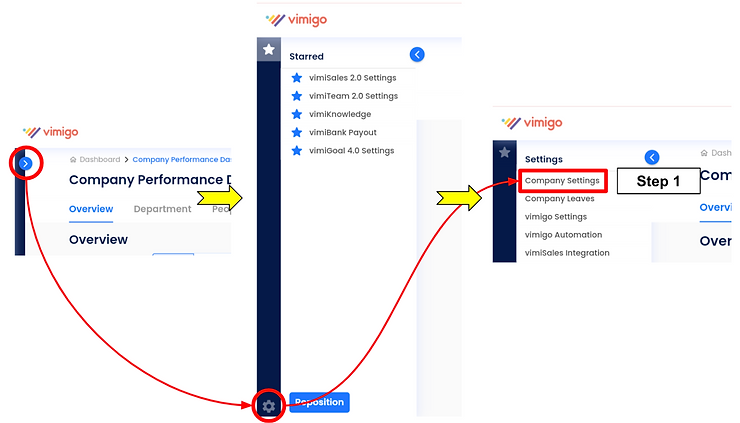
- Go to Company > "Holiday Settings".
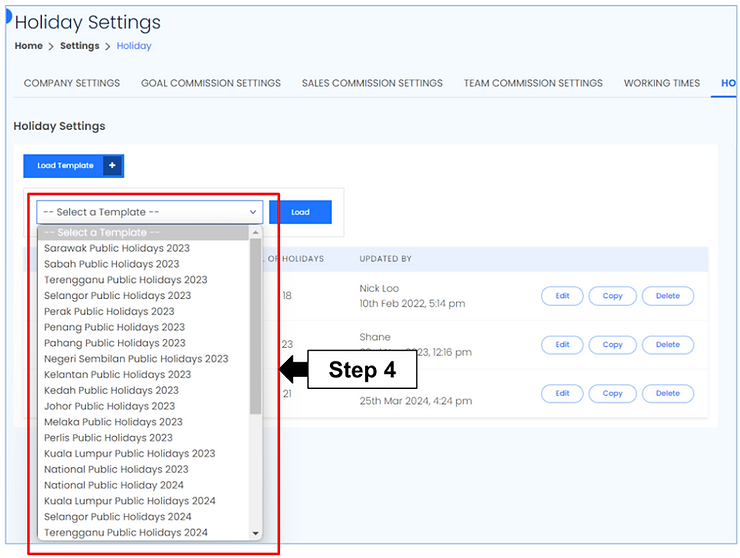
- Click "Load Template" and pick a template like "Malaysia KL 2025 Public Holidays". Click "Load".
- Click the new list and review the dates.
- Back on the main page, in the right panel, set "Company Default Holiday" to your new list and click "Update".
After this, every employee automatically follows that holiday calendar.
For Admins (Employer / HR / Manager)
How to load a public holiday template
vimigo ships templates for common Malaysian holiday calendars (KL, Selangor, Penang, etc.). Loading a template clones it into your company, and you can then customise it.
- Company > "Holiday Settings".
- Click "Load Template" - a panel expands.
- In "Select a Template", pick the one you want (e.g. "Malaysia KL 2025 Public Holidays").
- Click "Load".
- The template appears in your holiday list table.
- Click the list name to open "Edit".
- Under "Holiday List", check each date and name.
- Click "Update" to save any changes.
How to assign a holiday list to the whole company
- Company > "Holiday Settings".
- On the right panel "Company Holiday", open the "Company Default Holiday" dropdown.
- Pick the holiday list you want everyone to follow.
- Click "Update".
- Background jobs propagate the change to every employee who doesn't have a department-level override.
How to add a company-specific holiday (e.g. company anniversary)
For internal events like a company anniversary or team-building day where nobody should be expected at work:
- "Holiday Settings" > click your active holiday list > "Edit".
- Scroll to the "Holiday List" section - it shows a table of date entries.
- At the bottom, there's an empty row with "Holiday name" and "Date" fields.
- Type the name - e.g. "Damai Company Anniversary".
- Click the "Date" field and pick the date.
- Click "Update" below the table.
The new entry is saved. vimiLeave and vimiCheckin will treat that date as a holiday from now on.
How to set a different holiday list for a specific department
Scenario: Your Selangor team gets Thaipusam as a public holiday, but your Johor team doesn't.
- "Holiday Settings" > "Load Template" and load a Selangor-specific template (or duplicate an existing list and customize it).
- The new list appears on the holiday list table.
- On the right panel, go to the "Department Holiday Override" section.
- Find the row for the Selangor department.
- Uncheck "Use Company Default" - the dropdown for that row becomes enabled.
- Pick the Selangor holiday list from the dropdown.
- Click "Update".
The Selangor team now follows that list. Everyone else still uses the company default.
Tip: To switch a department back to the company default, tick "Use Company Default" again. The dropdown goes disabled and the department inherits the company-wide choice.
How to duplicate a list for next year
At year-end, don't re-create the list from scratch - duplicate it.
- "Holiday Settings" > find last year's list (e.g. "Malaysia KL 2025").
- Click "Copy" on that row. A list called "Malaysia KL 2025 copy" is created.
- Click its name to open "Edit".
- In the top "Holiday Settings" form, change "Name" to "Malaysia KL 2026" and click "Update".
- Scroll to "Holiday List". Public holidays that follow the lunar calendar (Chinese New Year, Hari Raya, Deepavali) shift by 1–2 days each year - adjust those.
- Click "Update" to save.
- When the new year starts, go to "Company Default Holiday" and switch to the 2026 list.
How to merge one list into another
When you want to combine a base list with supplementary dates:
- Start with both lists already in your company (load templates or create them manually).
- Open the target list (the one you want everything combined into) in "Edit".
- Scroll to the "Merge Holidays list" section.
- Pick the source list from the "List" dropdown.
- Click "Merge".
- Review the combined "Holiday List" and remove any duplicate dates.
- Click "Update".
How to delete an old holiday list
- "Holiday Settings" > find the list.
- Make sure it's not the "Company Default Holiday" and not assigned to any department override. If it is, switch those to a different list first.
- Click "Delete" on the row and confirm.
If vimigo says "Holiday list is in use. Please make sure it is not in use before deleting", check every "Department Holiday Override" dropdown - the list is still assigned somewhere.
For Employees
Employees don't configure holidays. What they experience:
- Holidays appear as greyed-out dates on the mobile app calendar.
- On holidays, no clock-in reminder is sent.
- Leaves that span a holiday automatically skip that date in the day count.
- (If enabled on their device) a push notification reminds them of the upcoming holiday.
To see your holiday calendar: open the app > calendar or home screen - holidays show up visually. No setup required.
Settings & Configuration
| Setting | What it does | Default | Where |
|---|---|---|---|
| "Company Default Holiday" | Holiday list applied to everyone unless a department overrides | Empty | Holiday Settings > right panel |
| "Department Holiday Override" | A different holiday list for a specific department | Uses company default | Holiday Settings > right panel |
| "Use Company Default" checkbox | When ticked, department inherits the company default | On | Per-department row in the override panel |
| Holiday list "Name" | Display name used in dropdowns | Required | Edit Holiday List > "Holiday Settings" form |
| Holiday list "Timezone" | Timezone in which dates are interpreted | Depends on template | Edit Holiday List > "Holiday Settings" form |
| Holiday entries | Date + name entries inside a list | Empty | Edit Holiday List > "Holiday List" table |
Holiday assignment levels
Each employee's holiday calendar is resolved automatically from this priority chain:
- Custom - manually set per employee (rare, programmatic only).
- Department override - set via "Department Holiday Override".
- Company default - set via "Company Default Holiday".
The first match wins. Most employees land on the company default.
FAQ
Q: I added a holiday but vimiCheckin still expects employees to clock in that day.
A: Two things to check. (1) Did you click "Update" in the "Holiday List" section after adding the date? (2) Is the holiday list actually assigned as the company default, or as the override for the employee's department? Reopen "Holiday Settings" and verify the dropdown.
Q: An employee's leave application counted a public holiday as a leave day.
A: Open the assigned holiday list and confirm the date is in "Holiday List". If it's missing, add it. If it's there, verify the list is the one assigned to that employee's department or the company default.
Q: I can't delete a holiday list.
A: The list is still in use somewhere. Check "Company Default Holiday" and every "Department Holiday Override" row. Reassign those to a different list first.
Q: The template dates look wrong for my state.
A: vimigo's templates reflect official national public holidays. State-specific holidays live in separate templates (e.g. "Malaysia Selangor"). If your company chose to grant an extra bridging day or an internal day off, add it manually to your list.
Q: A department's dropdown is disabled and I can't pick a list.
A: The "Use Company Default" checkbox is ticked for that row. Uncheck it - the dropdown becomes editable.
Q: Does half-day holiday work? (E.g. a half day on New Year's Eve.)
A: vimigo doesn't have a half-day holiday type. A date is either a full holiday or a normal working day. For a half-day scenario, either add the date as a full holiday (everyone gets the day off) or leave it off the list and handle it through a company announcement.
Q: How do I know which list each of my departments is using?
A: Open "Holiday Settings" > the "Department Holiday Override" section shows every department with its current selection. Rows with "Use Company Default" ticked follow whichever list is in "Company Default Holiday".
Related Guides
- Working Days - the weekly schedule (which weekdays are working days). Holidays layer on top.
- Departments - each department can override the company's holiday list
- Company - the company-level default lives in Company settings