vimiCheck-In
Know who is working, from where, and for how long - with a tap on the phone.
What is it?
vimiCheck-In is the attendance system built into vimigo. Every time an employee taps "Check In" on the mobile app or the web, the system records the time, their GPS location, and optionally a selfie photo. When they tap "Check Out", it calculates the total duration and closes the record.
The result - called a timelog - feeds the rest of vimigo:
- The team timesheet, so managers can see who is working today.
- vimiClass performance scoring, where consistent and on-time check-ins boost the grade.
- Leaderboard rankings for early-birds and longest streaks.
- Attendance badges that are awarded automatically when streak milestones are hit.
Use vimiCheck-In whenever you need a reliable, GPS-aware attendance record - whether your team is at a shop counter, on a client site, or working remotely.
Quick Start
If it's your first day using vimiCheck-In as a staff member:
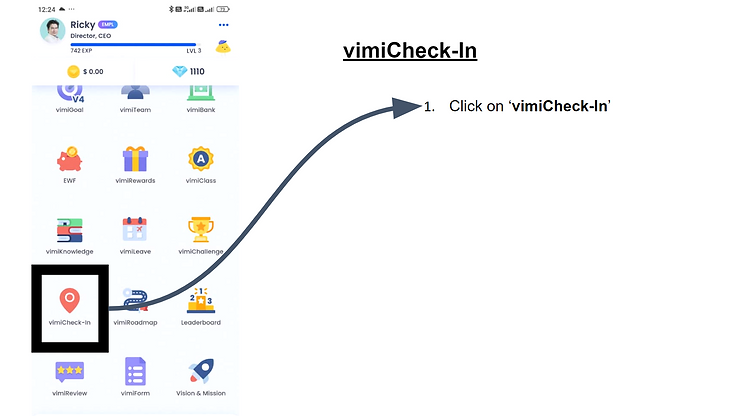
- Open the vimigo app and tap "vimiCheck-in" on the home screen.
- Wait for the "Current location" field to stop saying "Detecting .." and show a real address.
- (Optional) Type anything you want to note in the "Notes" field - e.g. "On-site at Mid Valley client".
- Tap "Check In". The button turns into "Check Out".
- At the end of the day, come back and tap "Check Out".
After this, your session shows in your "vimiCheck-in History", your manager's team timesheet, and feeds into your streak and leaderboard rank.
For Admins (Employer / HR / Manager)
How to turn on vimiCheck-In
vimiCheck-In is controlled by your company plan. If the "vimiCheck-in" menu does not appear in your sidebar, contact your vimigo account manager to enable it. Once it is on, the menu item appears immediately and everyone can start checking in.
How to view the team timesheet
- Go to Attendance → Timesheet in the main menu. The page opens on "vimiCheck-in History".
- Use the filters at the top:
- "Search by Name" - find one staff member quickly.
- "Dept." dropdown - filter by department.
- Date picker - choose a single day.
- "Filter" - apply your filters.
- The table shows columns for "People", "Dept.", "TIME IN", "TIME OUT", "CHECK IN LOCATION", "CHECK OUT LOCATION", "Duration", "PHOTO", "Attachments", and "Notes".
- To see the office on a map, go to Attendance → Staff Map. Every currently-checked-in employee shows as a pin.
How to add a check-in for someone who forgot
- From the "vimiCheck-in History" page, click "Add Check-in" at the top left.
- Pick the employee and enter the correct start and end date/time.
- Add a "Notes" entry explaining why (e.g. "Manual entry - client meeting, phone battery died").
- Save.
Warning: Timelogs older than 48 hours are locked and cannot be edited by managers. For anything older, contact vimigo tech support.
How to configure check-in reminders
If staff forget to check in, vimigo can push a reminder: "Hey there! Don't forget to check-in on your app today!"
- To control this for a whole department, open the department's notification settings and toggle "Department check-in notification".
- Individual staff can opt out from their own notification preferences.
Reminders only fire on weekdays by default.
How to handle shift-based teams
If you have structured shifts (factory lines, training sessions), shifts are a separate flow on top of basic check-in.
- Create a shift and assign employees to it.
- After the shift date passes, go to the shift attendance section.
- For each employee, mark them as one of:
- "Attended on time" - showed up within the expected window (up to 3 hours early still counts).
- "Attended late" - arrived after the shift start time.
- "Absent with reason" - has an approved leave or excuse.
- "Absent" - no-show, no reason.
- Use the bulk-update option when marking many records at once.
How to generate attendance reports
All reports live under the Reports section.
| Report | UI name | What you get |
|---|---|---|
| Absentee | "vimiCheck-In Monthly Performance" | Staff who did not check in during the selected period, grouped by department. |
| Daily record | "vimiCheck-In Daily Record" | Per-day check-in and check-out per employee. |
| Timesheet | Attendance → Timesheet | Full timesheet with totals for payroll. |
| Log record | Attendance → Log Record | Detailed attendance log entries. |
Pick the date range, optionally a department, and click "Generate Report".
How to identify staff working remotely
- In the attendance tools, look for the "Working Remotely" view.
- This lists anyone who checked in from outside the company's registered office GPS radius.
Useful when you have a mix of office and work-from-home staff and want to see who is on-site today.
For Employees
How to check in
- Open the vimigo app.
- The home screen shows "vimiCheck-in".
- Allow location access the first time you are prompted.
- When "Current location" shows a real address, tap "Check In".
- (Optional) Add a "Notes" line before you tap - e.g. "WFH today".
If your plan's GPS limit is reached, you will see "GPS check-in limit reached" and the button will change to "Check In without GPS". You can still check in - your time is recorded, just not your location.
How to check out
- Come back to the "vimiCheck-in" screen - it now shows the check-out form with your "Checked In" time.
- (Optional) Add a "Notes" line about how the day went.
- Tap "Check Out".
Your duration is calculated and the timelog is closed.
How to start and stop a break
You can record up to 3 breaks per session.
- During the day, tap "Start Break" when you go on lunch.
- When you come back, tap "End Break".
- The break shows in your timelog with its own start and end time.
If you forget to tap "End Break" before checking out, the break is automatically closed at check-out time.
How to view your own history
- Go to Attendance → Timesheet in the menu. The page shows "vimiCheck-in History".
- Pick a date range and tap "Filter".
- Your records show time in, time out, location, duration, photos, and notes.
You can update a note within 24 hours and change the photo within 5 minutes of checking in.
How to understand your streaks
- On-time streak - consecutive working days you checked in before or at the scheduled start time.
- Daily streak - consecutive working days you checked in at all.
Streaks only count on working days. Weekends, public holidays, and approved leave days do not break the streak, but they also do not extend it.
Streaks feed the "Early Bird of the Day" and "Early Bird of the Month" leaderboards.
Settings & Configuration
| Setting | What it does | Default | Where |
|---|---|---|---|
| Module toggle | Turns vimiCheck-In on or off for the company. | Off (contact vimigo to enable) | Company plan |
| GPS monthly limit | Cap on GPS-tagged check-ins per month. Excess check-ins proceed without GPS. | Plan-dependent | Company Settings → Plan |
| "Grace Period" (in vimiClass) | How late a check-in can be and still count as on time. | 3 hours (legacy) | Settings → vimiClass → Performance Weightage |
| Department check-in notification | Whether a department receives the daily "Don't forget to check-in" push. | On | Department settings |
| User check-in notification | Per-person opt-out for the reminder push. | On | User notification preferences |
auto_assign_attendance_badge | Automatically awards attendance milestone badges when streaks hit thresholds. | On | Company commission settings |
| Sub-check-ins | Secondary check-ins linked to a main session (useful for multi-site field work). | Available | Mobile app detail view |
Shift attendance statuses
| Label | When to use |
|---|---|
| "Unmarked" | Default before a manager reviews the shift. |
| "Attended on time" | Showed up within the expected window (up to 3 hours early). |
| "Attended late" | Arrived after the shift start time. |
| "Absent with reason" | Missed the shift but has an approved leave or excuse on file. |
| "Absent" | No-show with no recorded reason. |
FAQ
Q: I tapped Check In but nothing happened.
A: Make sure location services are enabled for the vimigo app. If "Current location" is stuck on "Detecting .." for more than 30 seconds, switch to "Check In without GPS" and add a note to explain.
Q: I forgot to check out yesterday.
A: Ask your manager or HR. Anyone with the right permission can add your check-out time within 48 hours. Beyond that, contact vimigo support.
Q: My GPS location is wrong. Can I fix it?
A: No - location is captured at check-in time and cannot be edited after. But you can add a note explaining the discrepancy within 24 hours.
Q: We're on the GPS limit - what now?
A: Staff can still check in without GPS. The button on the app automatically changes to "Check In without GPS". If you want unlimited GPS, upgrade the plan.
Q: Why does my on-time streak not grow even though I check in?
A: Streaks only count on working days. If your week has Monday–Friday as working days, weekends and public holidays do not grow the streak. If the streak count still looks off, check the company's Working Days configuration.
Q: Can a staff member check in twice in one day?
A: Yes. Multiple sessions on the same day are allowed - check in, check out, check in again. Sub-check-ins also let a field employee log separate location visits within one main session.
Q: The check-in reminder isn't reaching my department.
A: Check two things: the department's notification setting is enabled, and individual users haven't muted check-in notifications in their own preferences.
Q: An employee checked in from home but I need them in the office. How do I spot that?
A: Use the "Working Remotely" view - it lists everyone who checked in from outside the company's registered GPS radius.
Related Guides
- vimiClass - check-in consistency feeds the attendance component of vimiClass grading.
- vimiLeave - approved leaves make attendance-based scoring fair (leave days don't count as absence).
- Leaderboard - "Early Bird of the Day" and "Early Bird of the Month" use check-in timing.