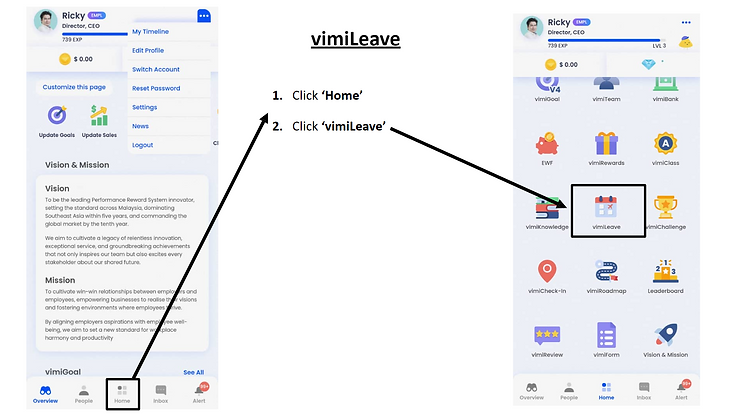
vimiLeave
Configure any leave type your company needs, track balances per employee, and run a clean approval flow - with reports HR can actually use.
What is it?
vimiLeave is vimigo's leave management module. It handles the full cycle: configuring leave types (annual, sick, maternity, study, replacement, or anything custom), setting per-employee entitlements, letting staff apply through the app, routing approvals to the right manager, and deducting the balance on approval.
vimiLeave is not a fixed list of Malaysian leave types - each company builds its own. You decide the name, the quota, whether it carries forward, whether it's prorated for new joiners, and who approves it. That flexibility means vimiLeave can model anything from standard Annual Leave under the Employment Act to bespoke things like "Mental Health Day" or "Hajj Leave".
Because leave integrates with the holidays calendar and working-days schedule, the system calculates duration correctly - a week off that includes Labour Day counts as 4 days, not 5.
Quick Start
For a new management user:
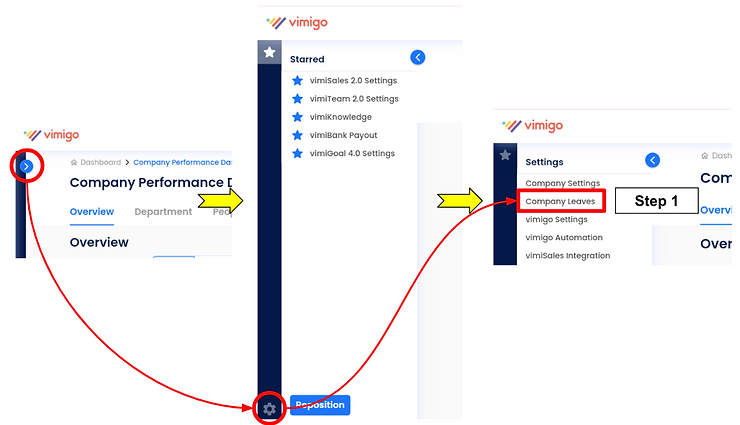
- Go to Admin Panel → Companies → [your company] → Leaves.
- Click "Custom Leaves" or "Create" to add the leave types you need (Annual Leave, Sick Leave, etc.).
- Assign employees to leave groups if you want different rules for different teams - otherwise everyone inherits the defaults.
- Tell staff to open Leaves in the sidebar to check their balance and apply.
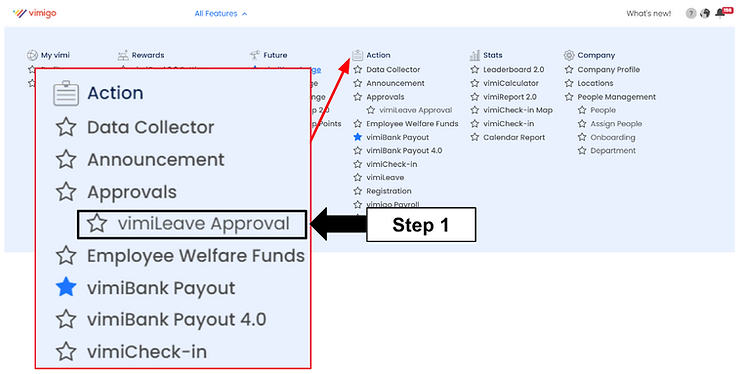
- Approvers click Leaves → vimiLeave Applications to approve or reject pending requests.
After this, leaves flow through the system automatically, balances update on approval, and you can pull reports any time.
For Admins (Employer / HR / Manager)
How to create a leave type
Say you want to add "Study Leave" and let staff request extra days for exams.
- Go to Admin Panel → Companies → [your company] → Leaves.
- Click "Custom Leaves" or "Create".
- Fill in:
- "Leave Type" -
Study Leave. - "Description" -
Paid leave for external training and professional exams. - "Quota" -
5. - "Unit" - "Days" (or "Hours" if you prefer hourly).
- "Earn Type" - "Earn All" (full quota immediately) or "Prorated" (partial for new joiners).
- "Renew On" - "New Year" or "Join Date Anniversary".
- "Carry Forward" - usually off for study leave.
- "Balance Request Enabled" - check this if you want staff to request extra days.
- "Status" - "Enabled".
- "Leave Type" -
- Click "Submit".
The leave type is now visible to all eligible employees.
How to adjust a single staff member's balance
There are three balance operations. Pick the one that matches what you are doing.
Override - you want to set the balance to an exact number. Use this when a value is wrong and you want to correct it outright.
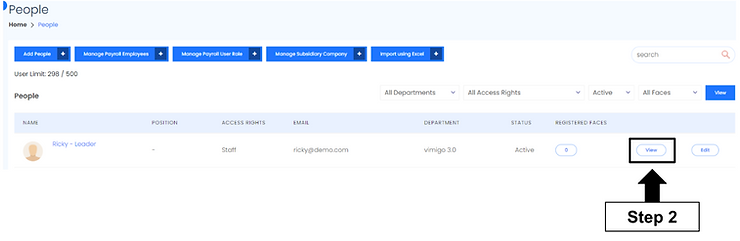
- Open the employee's profile.
- Click "vimiLeave Entitlement".
- Next to the leave type, click "Update".
- Select action "Override".
- Enter the new value (e.g.
8). - Add a remark:
"Corrected after system recalculation error". - Click "Save".
Increment - add days on top of what's there. Use this when rewarding extra leave.
Example: Aisha worked over a weekend on a product launch. Give her 1 day of replacement leave.
- Open Aisha's "vimiLeave Entitlement".
- Click "Update" next to Replacement Leave.
- Select "Increment", enter
1, remark:"Replacement for working on product launch weekend". - Click "Save".
Decrement - subtract days. Use this when a system glitch added too many.
- Same starting point.
- Select "Decrement", enter the amount to remove.
- Click "Save".
All three operations support half-day increments (0.5, 1.0, 1.5 …).
How to approve a leave application
- Click Leaves in the sidebar. You land on "vimiLeave Applications".
- The "Leave Application" tab shows pending requests for you.
- Click an applicant's name to open the detail.
- Check the dates, duration, and reason. The remaining balance is shown so you know whether they have enough days.
- Optionally add a note in "Remarks" - it is visible to the employee.
- Click "Approve" or "Reject".
If the employee has insufficient balance, a "Warning Insufficient Balance" modal pops up showing their "Remaining Balance:" and "Duration Applied:". You can still approve - vimiLeave allows negative balances if you decide to.
Tip: Approvers also get an email with secure "Approve" and "Reject" links. Clicking the link in the email processes the leave without logging in - useful when you're on the road.
How to set up multi-level approval
- In the admin panel, open the approval settings for the relevant leave group.
- Add approvers in the order they should act. Every level must approve before the balance is deducted.
- If any level rejects, the request goes to "Rejected" and the employee is notified.
How to configure carry-forward for annual leave
- Open Admin Panel → Companies → [company] → Leaves.
- Click Edit on Annual Leave.
- Set "Carry Forward" to "On".
- Set "Carry Forward Maximum" to the cap (e.g.
5days). - Click "Save".
After the renewal date (Jan 1 or join anniversary), up to 5 unused days will roll into the new period. Anything above is zeroed.
How to recalculate all balances
After changing carry-forward rules or fixing settings, you often need a company-wide recalculation.
- Go to Admin Panel → Companies → [company] → Leaves.
- Click "Recalculate Balance".
- A background job runs and recalculates every employee's balance using the current settings.
- You will get an email when it finishes.
How to generate a vimiLeave report
HR usually needs one of four reports. Go to the report section and pick the one you need:
| Report | What it gives you |
|---|---|
| "vimiLeave Applications Report" | Every application in the period with status, dates, approver, and remarks. |
| "Leave Group Overview" | Summary of which leave types each group is entitled to. |
| "User's Leave Balance" | Per-employee balances for every leave type - the most common payroll export. |
| "vimiLeave Insight Report" | Aggregates like who takes the most sick leave, leave trends by month. |
Steps:
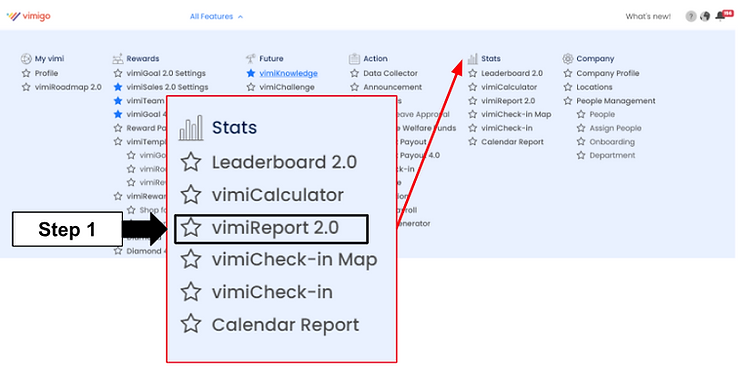
- Open Reports (or the Stats section) and select the "vimiLeave" tab.
- Pick the report type.
- Set the date range.
- Optionally filter by department or specific staff.
- Click "Generate" and download the Excel when ready.
For Employees
How to check your leave balance
- Click Leaves in the sidebar.
- The "Your Available vimiLeaves" table at the top shows every leave type with your current balance, quota, and unit (days or hours).
- For past applications, click "Application History".
How to apply for leave
- Click Leaves → Apply vimiLeave.
- Fill in:
- "Leave Type" - pick from the dropdown.
- "From Date" - single-day leave stops here.
- For multiple days, check "Multiple Days" and set "To Date" too.
- Day period - "Full day", "Half day (AM)", or "Half day (PM)".
- "Duration (Days)" - usually auto-calculated; adjust if needed.
- "Reason" - explain briefly.
- "Show Reason to Approver Only" - toggle on if your reason is private.
- Attach a file (e.g. medical certificate) if required.
- Click "Submit".
- Your application status shows "Pending" until your manager acts.
How to track an application
- Open Leaves → Application History.
- Each row shows status: "Pending", "Approved", "Rejected", or "Cancelled".
- Click a row to see the full approval chain - handy when multi-level approval is in play.
How to cancel a leave application
- Find the application in Application History or the main Leaves page.
- Click the cancel button on the row.
- Confirm.
If the leave was already approved, your balance is automatically restored.
How to request extra balance (top-up)
If your company allows balance requests on a leave type:
- Click Leaves and switch to the "Balance Request" tab.
- Click the apply button.
- Fill in the leave type, how many days you need, and a reason - e.g. "External certification exam needs 3 extra study leave days".
- Attach supporting documents if needed.
- Click "Submit".
Your manager is notified. Balance is only credited if they approve.
Settings & Configuration
Per leave type
| Setting | What it does | Typical value |
|---|---|---|
| "Quota" | Maximum days per period. | 14 for sick, 8–20 for annual |
| "Unit" | "Days" or "Hours". | Days |
| "Earn Type" | "Prorated" (partial for new joiners) or "Earn All" (full quota immediately). | Prorated for annual, Earn All for sick |
| "Renew On" | "New Year" (Jan 1) or "Join Date Anniversary". | New Year |
| "Carry Forward" | On/off - whether unused days roll over. | On for annual only |
| "Carry Forward Maximum" | Cap when carry-forward is on. 0 = unlimited. | 5 |
| "Balance Request Enabled" | Let staff request extra days. | On for study / replacement, off otherwise |
| "Deduct Payroll" | Links approved leaves to PayrollSiti deduction. | On for unpaid leave |
| "Status" | "Enabled" (staff can apply) or "Disabled" (hidden). | Enabled |
| "Service Year Tiers" | Different quotas for 0–2 / 3–5 / 6+ years of service. | Common for annual |
Approval states
| Status | What it means |
|---|---|
| "Pending" | Submitted, awaiting approver action. |
| "Approved" | All required approvers have approved; balance deducted. |
| "Rejected" | An approver said no; balance unchanged. |
| "Cancelled" | Employee withdrew, or a management user cancelled. If it was Approved, balance is restored. |
Typical Malaysian SME setup
| Leave type | Quota | Earn | Carry-forward | Approval |
|---|---|---|---|---|
| Annual Leave | 8 / 12 / 16 by service years | Prorated | On (max 5) | Manager |
| Sick Leave | 14 days | Earn All | Off | Manager (for records) |
| Emergency Leave | 3–5 days | Earn All | Off | Post-hoc notify |
| Maternity Leave | 98 days | Earn All (one-time) | Off | HR |
| Paternity Leave | 7 days | Earn All | Off | Manager |
| Unpaid Leave | Unlimited | - | Off | HR |
| Compassionate | 3 days per event | Earn All | Off | Manager |
| Replacement | Accrued on use | - | On | Manager |
FAQ
Q: An employee submitted leave but their balance didn't change.
A: Balance is only deducted on final approval. If the request is still Pending - especially with multi-level approval - no deduction has happened yet. Open Application Status Details to see which level is still waiting.
Q: The employee's balance is negative.
A: That is allowed by design. Approvers can push through a request even if the balance is short, via the "Warning Insufficient Balance" modal. Use Decrement or Override to correct it if needed.
Q: The leave duration is off because a public holiday is counting as a working day.
A: Check that the public holiday is configured in the Holidays module for the company. When holidays are set correctly, the duration automatically excludes them.
Q: Ahmad can't see a leave type when he tries to apply.
A: Check three things: (1) the leave type is "Enabled"; (2) Ahmad's leave group has access to that type; (3) the vimiLeave module is enabled for the company.
Q: The Balance Request tab is greyed out.
A: No leave type in the company has "Balance Request Enabled". Enable it on at least one leave type in the admin panel.
Q: How do I bulk update balances for every staff at once?
A: Export the balance list as Excel from the report, edit the file, and re-import. vimigo runs a bulk override job in the background.
Q: The service-year tier isn't applying correctly.
A: Check the employee's "Hired Date" (or "Confirmation Date") in their staff profile. That is what the system uses to calculate years of service.
Q: Where do I manage the approvers for a team?
A: Each leave group has its own approval setting. Open the group in the admin panel and configure who approves at each level.
Related Guides
- vimiCheckin - attendance records respect approved leaves so staff aren't penalised for being off.
- vimiClass - leave-aware attendance scoring flows into the check-in component of the vimiClass grade.
- Leaderboard - wellness leaderboards like "Highest Working Streak" and "Wellbeing" use vimiLeave data.