vimiRoadmap
Map out a clear career ladder for every role and let staff see - and work towards - where they can go next.
What is it?
vimiRoadmap is vimigo's career development tool. It lets a company map out a progression path for each role - a series of milestones like "Junior Associate", "Senior Associate", "Team Lead", "Manager" - and assign those paths to employees.
Each milestone has a target number of roadmap points that the employee must accumulate before they can request a promotion, and optionally a set of badges (e.g. "Customer Champion", "Mentor") they must have earned. Employees see their own path, their current level, and how close they are to the next one. When they hit the target, they tap "Request" and their manager approves or rejects.
Use vimiRoadmap when you want staff to know - clearly, without playing guessing games - what it takes to move up. It pairs well with vimiClass: vimiClass tells you how someone is performing right now (this cycle's grade), and vimiRoadmap tells you where they are on the career journey and what they need to do next.
Badges earned in other modules can act as milestone prerequisites, so career progression doesn't just depend on raw points - it reflects demonstrated behaviours.
Quick Start
If you are setting up your first roadmap:
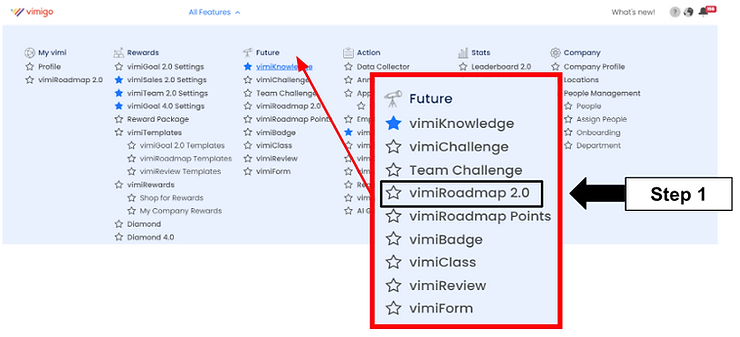
- Click vimiRoadmap in the top navbar. You land on the "Dashboard" page.
- Click "Create New vimiRoadmap" and name it (e.g. "Sales Team Career Path").
- Click "Add New Milestone" and enter the title ("Sales Associate"), description, and target points (e.g.
500). Repeat for each rung. - Click "Assign vimiRoadmap" and pick the employees who should follow this path.
- Click "Save".
After this, staff can open vimiRoadmap on the mobile app and see their career ladder.
For Admins (Employer / HR / Manager)
How to create a roadmap from scratch
- In the top navigation, click vimiRoadmap to open the "Dashboard".
- Click "Create New vimiRoadmap".
- Type a name into "Insert Roadmap Name" (e.g. "Operations Career Path").
- Click "Add New Milestone" to open the "Add New vimiRoadmap Milestone" modal.
- Fill in:
- "Title" - the career stage name (e.g. "Operations Senior").
- "Description" - what this stage represents.
- "Target Points" - how many points the employee needs to be eligible for promotion (e.g.
500). - "Unlocked When" (optional) - points required to even see this milestone. Useful if you want to keep future stages private until staff are close.
- "Required Badges" (optional) - click "Choose Badges" to pick prerequisite badges.
- Click the "Add New Milestone" button (with the + icon) to save it.
- Repeat for every rung.
- Click "Assign vimiRoadmap", pick the staff, and click "Save".
- When the warning modal appears - "Assigning users to this vimiRoadmap will overwrite any users who have existing vimiRoadmap setting" - click "I understand".
How to create a roadmap from a template
Templates save time if you have several similar paths.
- On the dashboard, click "Create New vimiRoadmap".
- Name the roadmap.
- In the milestones section, click "Load Template".
- The "Apply vimiRoadmap Template" modal opens. Click a template on the left to preview its milestones on the right.
- Close the modal - the milestones load into your form.
- Edit anything you want to change, assign users, and click "Save".
How to set up roadmap points earned per action
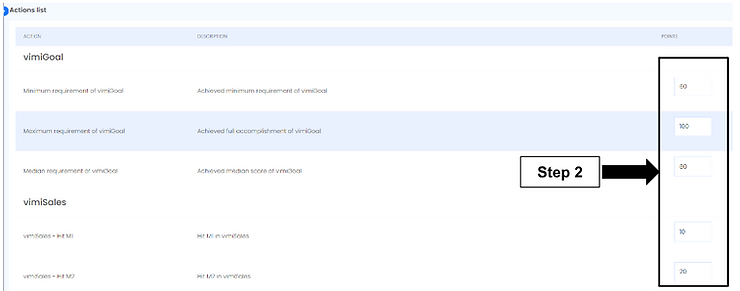
Points are the currency of vimiRoadmap. You decide how many points different actions earn.
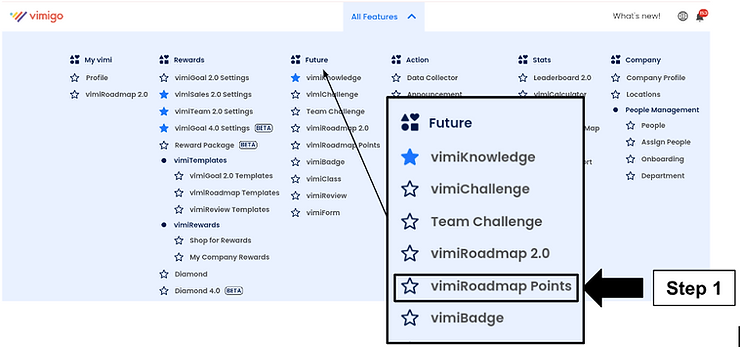
- Go to vimiRoadmap Points (or the Points section under vimiRoadmap settings).
- For each action - completing a vimiGoal item, closing a vimiSales order, etc. - enter the points awarded.
- Click "Save".
Example: 10 points per vimiGoal item completed, 5 points per RM 100 of sales, 20 points per Customer Champion badge earned.
Tip: Keep point values stable once staff are on a path. If you change them mid-quarter, old milestone targets may suddenly feel too easy or too hard.
How to approve a promotion request
- On the vimiRoadmap "Dashboard", find the "Pending Approval" panel on the right.
- Each card shows the employee's photo, name, roadmap title, the milestone they're requesting, their "Current Milestone", and "Points required for promotion".
- Click the green checkmark to approve, or the red X to reject.
- The employee gets a notification: "Congratulation! You have been promoted to [milestone]." on approval, or "Your vimiRoadmap request have been rejected." on rejection.
To see the full history, click "See All" to open the "Approval Requests" page. Use the tabs to filter "All", "Pending Approval", "Approved", "Rejected".
How to advance an employee directly (skip the request)
Sometimes you want to promote someone without waiting for them to tap "Request".
- Go to Employee vimiRoadmaps → find the employee → click "View Profile".
- On their roadmap profile page, find the "Roadmap Milestones" section.
- Click "Add New Milestone" to push them to the target milestone directly.
- Confirm.
The employee gets a "vimiRoadmap Promoted" notification automatically.
How to view a staff member's roadmap progress
- Click Employee vimiRoadmaps in the top navigation.
- The table lists every employee with columns: "Name", "Dept", "vimiRoadmap", "Current Level", "Total vimiRoadmap Item", "Current Points", "Action".
- Click "View Profile" to open a staff member's roadmap detail.
- You can see their timeline, how many points they have, and which milestones are still In Progress, Completed, or Pending.
How to edit or delete a roadmap
- Click vimiRoadmap Settings (the list page showing all roadmaps).
- To edit: click "Edit". The page shows the roadmap title and "Roadmap Milestones" with the note "Editing an employee's roadmap will create a new setting. Promotion feature will be disabled if employee's roadmap is edited." - which means in-flight promotions pause while you restructure.
- To delete: click "Delete". A warning appears - "Deleting this vimiRoadmap will permanently delete this vimiRoadmap and the user's vimiRoadmap results." Click "I understand" to confirm.
Warning: Deletion is irreversible and wipes everyone's progress on that roadmap. If you only want to pause a roadmap, set its status to "Disabled" instead.
How to manage templates
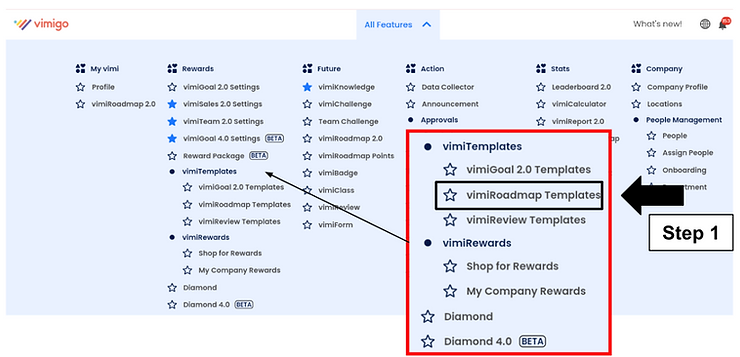
- Go to vimiRoadmap Templates.
- Click "Add new template" to build one from scratch, or "Add From Google Sheet" to import from a spreadsheet.
- Templates don't update live roadmaps - they are only starting points for new ones.
For Employees
What you'll see on the mobile app
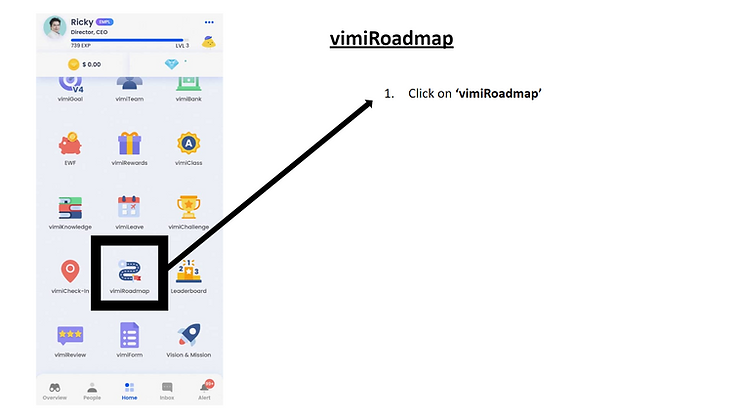
When you open vimiRoadmap, you see your career path - a series of milestones stretching from where you are now to the top of the ladder. Each milestone shows:
- Its name (e.g. "Senior Engineer").
- The number of points you need to reach it.
- Whether you've achieved it, are working towards it, or haven't unlocked it yet.
Future milestones may be locked until you accumulate enough points to see them - that's the "Unlocked When" setting HR picked.
How you earn points
Your roadmap points come from day-to-day vimigo activities - completing vimiGoal items, closing sales, earning badges, getting high vimiClass grades. Every eligible action adds points to your running total.
Badges earned in other modules matter too. If your next milestone requires "Customer Champion" and "Mentor" badges, you need both before you can request the promotion - not just the points.
How to request a promotion
- Open vimiRoadmap on the mobile app.
- Find the milestone you just reached (target points met, required badges earned).
- Tap "Request".
- Your request goes to your superior, manager, HR, and the employer.
You will get one of two notifications back:
- "Congratulation! You have been promoted to [milestone name]." - you're officially at the new level.
- "Your vimiRoadmap request have been rejected." - check with your manager for feedback.
You can cancel a pending request any time before it's processed.
Helpful greetings you'll see
- "Hello! Your first vimiRoadmap is…" - when you haven't completed any milestone yet.
- "Hello! Your next vimiRoadmap is…" - when you're working towards the next rung.
- "Congratulations! You have completed and achieved all of your vimiRoadmap." - when you've finished the entire path.
- "Hello! There is no vimiRoadmap planned yet for you. Let's get you started!" - when your company hasn't assigned a roadmap to you yet.
Settings & Configuration
Roadmap set status
| Status | When to use |
|---|---|
| "Draft" | Still building the path; not yet ready to assign. A set with no milestones is automatically kept as Draft. |
| "Published" | Active and ready to assign to employees. |
| "Disabled" | Paused. Existing staff are unaffected but no new assignments should be made. |
Milestone fields
| Field | Required | Notes |
|---|---|---|
| "Title" | Recommended | The name of the career stage. |
| "Description" | Optional | Shown on the employee's roadmap view. |
| "Target Points" | Recommended | Points needed to request promotion. |
| "Unlocked When" | Optional | Points needed to see the milestone. Use it to hide future stages. |
| "Required Badges" | Optional | Badges the employee must have earned before requesting promotion. |
Promotion request states
| Status | What it means |
|---|---|
| "Pending" | Waiting for a management user to approve. |
| "Approved" | Management user approved; the employee is promoted. |
| "Rejected" | Management user rejected; the employee can try again later. |
| "Cancel" | The employee withdrew the request before action. |
How vimiRoadmap connects with vimiClass
vimiRoadmap and vimiClass answer two different questions:
- vimiClass - "How did I perform this cycle?" (this quarter's grade)
- vimiRoadmap - "Where am I on my career path?" (the next rung)
A strong vimiClass grade can feed vimiRoadmap in two ways: (1) vimiClass can award badges on Class A achievements, and those badges may be milestone prerequisites; (2) vimiClass-related activities generate roadmap points. Together, the two modules let staff see both their short-term grade and their long-term growth.
FAQ
Q: An employee has enough points but the Request button isn't showing.
A: The button only shows on the next milestone in sequence. If an earlier milestone is still pending approval, later milestones are hidden. Also check whether the milestone requires badges the employee hasn't earned yet.
Q: An employee submitted a promotion request but I don't see it in Pending Approval.
A: Check the employee is still an active member of the company, and that their roadmap assignment record wasn't deleted. Also confirm the notification was routed to the right superior.
Q: We edited the roadmap after staff were assigned and their progress looks wrong.
A: Changing milestones triggers a background job that recalculates each employee's position. Give it a few minutes. If it still looks off after that, contact support.
Q: Deleting a roadmap wiped everyone's progress. Can I get it back?
A: No - deletion is permanent. Next time, use "Disabled" status to pause a roadmap instead of deleting.
Q: How do templates relate to live roadmaps?
A: Templates are reusable blueprints. They're only a starting point - editing a template later doesn't change existing roadmaps.
Q: Do all staff need a roadmap assigned?
A: No. If someone hasn't been assigned one, they'll see "Hello! There is no vimiRoadmap planned yet for you." You can add them later from Employee vimiRoadmaps.
Q: Can I have different roadmaps for Sales vs Operations?
A: Yes - that's the normal pattern. Create one "Sales Team Career Path", another "Operations Career Path", and assign each employee to the one that matches their department.
Q: What happens to roadmap points when an employee changes department?
A: Points accumulated stay with the employee. If you reassign them to a different roadmap, their points carry over but their milestone position resets to the new path's first rung.
Related Guides
- vimiClass - the companion grading module; badges earned from Class A grades can act as roadmap milestone prerequisites.
- Leaderboard - "Highest Point Monthly / Yearly" ranks staff by roadmap points.
- vimiKnowledge - knowledge-base activity can earn points and badges that feed into milestones.